Authentication Methods
Email response authentication is useful when you are using an email-based work flow with AlphaTrust® e-Sign. An email is sent to the designated
email address (with follow up emails as configured). The email contains a transaction specific link. Anyone with access to this email could use the link. You can configure any Participant to receive the process access link email by setting the Participant's SendRequestViaEmail property to true.
participant = new ParticipantInsertModel()
              {
                  FullName = "John Smith",
                  EmailAddress = "testing@alphatrust.com",
                  SendRequestViaEmail = true
              }
PIN/Password
The Password authentication type allows you to assign a onetime PIN/Password to the participant's process access link. AlphaTrust® e-Sign will prompt the user for this PIN/password before allowing any viewing or signing of the documents. This PIN/password is specific to a participant in a particular transaction. The Email Response authentication may be combined with PIN/password authentication. PIN/Passwords for Participants in a transaction must be at least 4 characters and not more than 128 characters long. Any character is allowed except the space character and control codes (i.e. byte values below 0x20).
participant = new ParticipantInsertModel()
              {
                  FullName = "John Smith",
                  EmailAddress = "testing@alphatrust.com",
                  SendRequestViaEmail = true,
                  Authentication = new AuthenticationModel()
                                   {
                                       Type = AuthenticationModel.TypeEnum.Password,
                                       Data = "p@ssword123"
                                   }
              }
Mobile (OTP)
Mobile authentication, also known as One-Time Passcode (OTP) authentication in our Control Panel user interface, currently requires a Twilio account setup in our Integrations section. Enabling Mobile authentication will require a phone number during Transaction creation setup and will prompt the Participant to send themselves a text to the pre-configured phone number at which point they will need to enter the code sent in order to proceed further.
| Name | Type | Description |
|---|---|---|
| CredentialName | string | Unique name of the third-party credential set up in the Control PanelUnique name of the third-party credential set up in the Control Panel |
| MobileSendToPhone | string | Phone number to send the One-Time Passcode to. With, or without dashes. |
| UnmaskedPhoneCount | number Default: 4 | How many unmasked digits of the users phone number are displayed to the user during the signing ceremony. |
| RawResultNoStore | 0 or 1 | Determines whether the raw result from the mobile authentication provider will be stored in the database. |
| MobilePasswordLength | number Default: 4 | For TwilioVerify and TwilioSms, this will determine the length of the One-Time Passcode sent to the user. |
| MobileSendType | sms or voiceDefault: sms | Used for TwilioVerify to determine how the One Time Passcode will be delivered |
| MobileCountryCode | number Default: 1 | Used by TwilioVerify to set the country code of the phone number used. |
| MobileLocale | string Default: en | Used by TwilioVerify to specify the language of the message received by the user. |
participant = new ParticipantInsertModel()
              {
                  FullName = "John Smith",
                  EmailAddress = "testing@alphatrust.com",
                  SendRequestViaEmail = true,
                  Authentication = new AuthenticationModel()
                                   {
                                       Type = AuthenticationModel.TypeEnum.Mobile,
                                       Data = "credentialname=myMobileCreds;mobilesendtophone=555-555-5555"
                                   }
              }
Registered User
RegisteredUser authentication can make use of a Registered User signature image uploaded to the user's profile within AlphaTrust® e-Sign. These profiles are created and maintained by a group administrator. They contain the user's name, email address, title, organization, and may optionally contain an image of the user's handwritten signature. If this image is present, it is used to visually represent the signature. This type of authentication is most often used by regular users of AlphaTrust® e-Sign, such as managers or executives. Email response authentication may be combined with RegisteredUser authentication.
participant = new ParticipantInsertModel()
              {
                  FullName = "John Smith",
                  EmailAddress = "john.smith@your-domain.com",
                  SendRequestViaEmail = true,
                  Authentication = new AuthenticationModel()
                                   {
                                       Type = AuthenticationModel.TypeEnum.RegisteredUser,
                                       Data = "johnsmith" //username goes here or leave blank for any valid user
                                   }
              }
Federation
Federation authentication delegates sign-in to a trusted identity provider using OpenID Connect (OIDC) / JWT-based Single Sign-On (SSO). AlphaTrust® e-Sign supports the following identity providers:
- Okta – OpenID Connect integration using an Okta application configured as a Single-Page Application (SPA) with implicit/hybrid grant type.
- Microsoft Azure AD – OpenID Connect integration using an Azure App Registration configured as a Single-Page Application (SPA) with implicit flow and ID tokens enabled.
- Windows ADFS (Active Directory Federation Services) – OpenID Connect integration using an ADFS Native Application registration.
All three providers are configured through the Account > Integrations section of the AlphaTrust® e-Sign Control Panel. Once an integration is created, individual users are mapped to their SSO identity via the SSO Logins tab on the user record.
On-premise / in-stack deployments must enable the provider login buttons in the [Pronto_CP] section of ProntoConfig.ini, then restart services and IIS:
[Pronto_CP]
ShowOktaButton=1
ShowAzureButton=1
ShowAdfsButton=1
SaaS customers do not require this step.
Okta Setup
- In your Okta account, navigate to Applications > Applications and click Create App Integration.
- Set Sign-in method to OIDC – OpenID Connect.
- Set Application Type to Single-Page Application.
- Click Next.
- Ensure the Implicit (hybrid) grant type is checked.
- Set the Sign-in redirect URI to
https://<your-esign-domain>/cp/access/okta. - Set the Sign-out redirect URI to
https://<your-esign-domain>/cp. - Set Controlled Access to Allow everyone in your organization to access, then click Save.
- Navigate to the Sign On tab and make note of the Issuer and Client ID (Audience) values — you will need these in the next step.
- In the AlphaTrust® e-Sign Control Panel, navigate to Account > Integrations and click Add Integration:
- Check System-Wide.
- Enter a descriptive Integration Name (e.g.,
OktaSSO). - Select Okta for the Provider and ensure Active is checked.
- Enter the Issuer URI and Client ID from step 6.
- Click Add Integration.
- Navigate to Account > Users, click Edit User for the user to configure, then:
- Select the SSO Logins tab.
- Click Add SSO Login.
- Enter the user's Okta username and select the integration name from step 7.
- Click Update User.
Microsoft Azure AD Setup
- In the Azure Portal, search for and open Azure Active Directory, then navigate to App registrations and click New registration.
- Name the registration, then for the Redirect URI:
- Select Single-page application (SPA) as the platform.
- Enter
https://<your-esign-domain>/cp/access/azureas the value. - Click Register.
- Navigate to Authentication in the left sidebar:
- Set the Front-channel logout URL to
https://<your-esign-domain>/cp. - Ensure ID tokens (used for implicit and hybrid flows) is checked.
- Click Save.
- Set the Front-channel logout URL to
- Navigate to Overview and make note of the Application (client) ID and Directory (tenant) ID — you will need these in the next step.
- In the AlphaTrust® e-Sign Control Panel, navigate to Account > Integrations and click Add Integration:
- Check System-Wide.
- Enter a descriptive Integration Name (e.g.,
AzureSSO). - Select Azure for the Provider and ensure Active is checked.
- Enter the Tenant ID and Client ID from step 4.
- Click Add Integration.
- Navigate to Account > Users, click Edit User for the user to configure, then:
- Select the SSO Logins tab.
- Click Add SSO Login.
- Enter the user's Microsoft/Azure account username and select the integration name from step 5.
- Click Update User.
Windows ADFS Setup
- On the ADFS server, open AD FS Management and navigate to AD FS > Application Groups.
- Open the relevant Application Group and double-click the Native Application entry to edit it.
- Add your redirect URI to the Redirect URI list using the format
https://<your-esign-domain>/CP/access/adfs, click Add, then Apply and OK. - In the AlphaTrust® e-Sign Control Panel, navigate to Account > Integrations and click Add Integration:
- Check System-Wide.
- Enter a descriptive Integration Name (e.g.,
AdfsSSO). - Select ADFS for the Provider and ensure Active is checked.
- Enter the Issuer URI for your ADFS instance (e.g.,
https://adfs.yourdomain.com) and the Client ID. - Click Add Integration.
- Navigate to Account > Users, click Edit User for the user to configure, then:
- Select the SSO Logins tab.
- Click Add SSO Login.
- Enter the user's ADFS username (e.g.,
domain\username) and select the integration name from step 4. - Click Update User.
Participant Authentication
Once your SSO integration is configured in the Control Panel, you can require Federation authentication for a Participant during their signing process by setting two properties on the AuthenticationModel:
| Property | Type | Description |
|---|---|---|
Data | string | The identity claim value the provider returns after login (e.g., the user's SSO username or email address). Leave blank to allow any valid federated user. |
Provider | number | The numeric ID of the SSO integration configured in Account > Integrations in the Control Panel. |
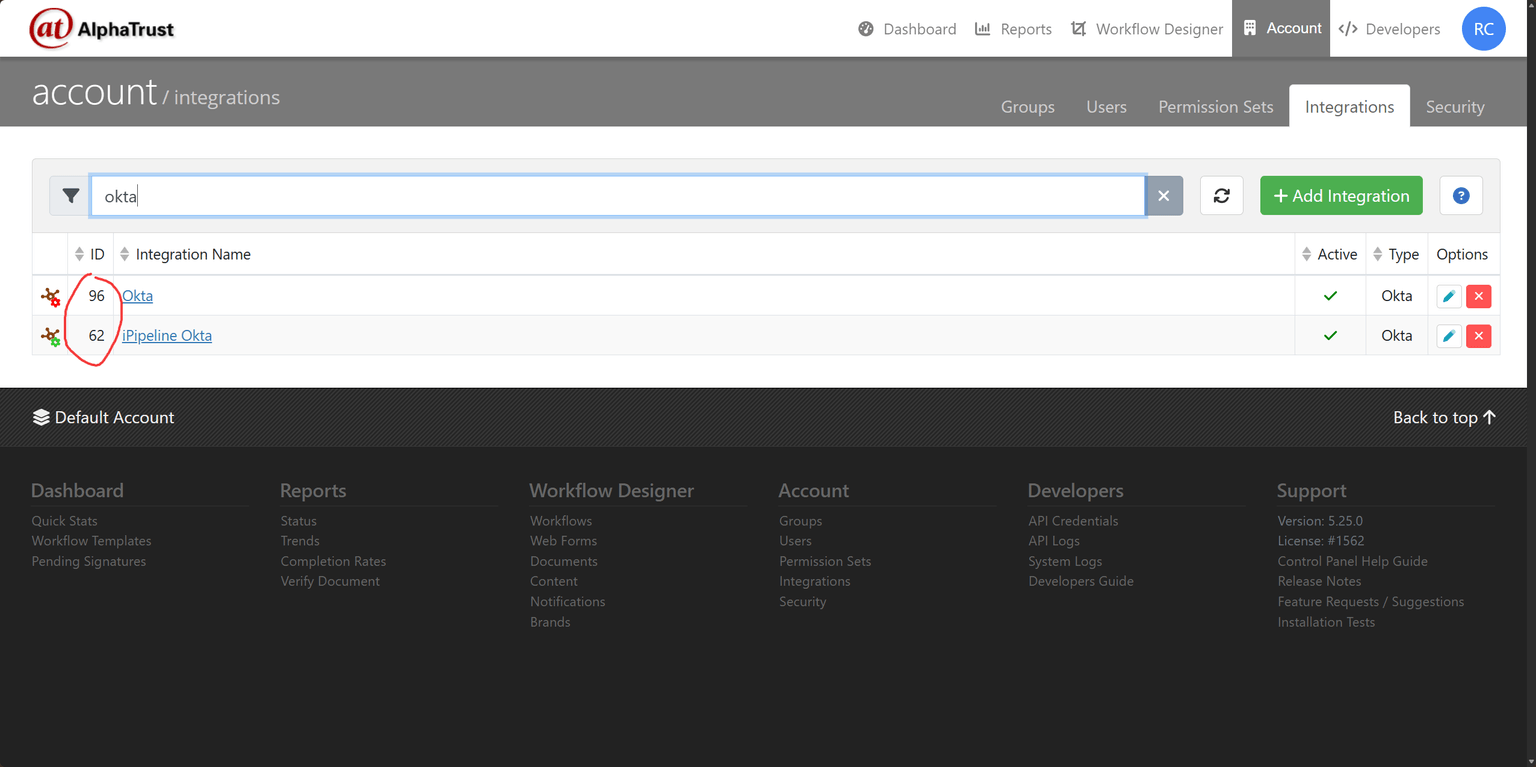
To locate the Provider ID, navigate to Account > Integrations in the Control Panel. The ID is displayed in the ID column of the integrations list.
Participants = new atService.ParticipantInsertModel[]
{
    new atService.ParticipantInsertModel
    {
        FullName = "John Q. Tester",
        EmailAddress = "testing@alphatrust.com",
        Tasks = task1,
        Authentication = new atService.AuthenticationModel()
        {
            Type = atService.OptionParticipantAuthenticationTypes.Federation,
            Data = "my-claim-username@rbc.com", // SSO claim username returned by the identity provider.  Leave blank for any user with a valid authenticated claim.
            Provider = 62 // ID of the integration found in the Integrations tab in the Control Panel
        }
    },
}
Challenge Questions
Challenge Questions authentication is a security mechanism used to verify a user's identity by prompting them to answer a pre-set personal question, such as "What is your mother's maiden name?" It ensures that only authorized users can access or modify resources by validating their identity through information that is presumably known only to them, enhancing the overall security of the API integration. It is recommended to be used only as a second factor authentication and not the sole/primary authentication.
participant = new ParticipantInsertModel()
              {
                  FullName = "John Smith",
                  EmailAddress = "john.smith@your-domain.com",
                  SendRequestViaEmail = true,
                  Authentication = new AuthenticationModel()
                                   {
                                       Type = AuthenticationModel.TypeEnum.Questions,
                                       Questions = new ParticipantQuestionModel[]
                                       {
                                            new ParticipantQuestionModel()
                                            {
                                                Question = "What is your favorite food?",
                                                Answer = "Tacos!!"
                                            },
                                            new ParticipantQuestionModel()
                                            {
                                                Question = "What is your second favorite food?",
                                                Answer = "Also tacos!!"
                                            }
                                       }
                                   }
              }
Knowledge-Based (KBA)
Knowledge-based authentication, commonly referred to as KBA, is a method of authentication which seeks to prove the identity of someone accessing a service such as a financial institution or website. As the name suggests, KBA requires the knowledge of private information of the individual to prove that the person providing the identity information is the owner of the identity. There are two types of KBA: static KBA, which is based on a pre-agreed set of shared secrets, and dynamic KBA, which is based on questions generated from a wider base of personal information. KBA authentication through AlphaTrust providers utilize dynamic KBA.
KBA Provider Options
Experian’s Knowledge IQ℠ powered by Precise ID℠ is a revolutionary knowledge-based authentication tool for identity authentication and fraud prevention. Precise ID℠ scoring models and Knowledge IQ℠ interactive challenge-response questions provide innovative and integrated identity authentication and fraud detection on a single platform. By combining the leading-edge analytics and decisioning technology of Precise ID℠ scores with the sophisticated Knowledge IQ℠ challenge-response authentication questions, you have a comprehensive risk-management and identity authentication system. You must have an account set up with Experian prior to utilizing this authentication method.
LexisNexis Risk Solutions™ offers an Authentication product used to quickly verify identities and create multi-layered authentication approaches for better fraud control, and a better customer experience. You must have an account set up with LexisNexis prior to utilizing this authentication method.
Control Panel Configuration
Login to the AlphaTrust® e-Sign Control Panel using an account with Administrative permissions and select Credential Administration. Add a new Credential and select either LexisNexis or ExperianPreciseID. Type a unique Credential Name and remember this value (it will be used later) and complete all fields; click Insert.
API Configuration
There is an Authentication property on the Participant object. Create a new Authentication object and set the property Type to Authentication.Types.Kba.
There is also a property on the Authentication object called Data. This accepts a semi-colon delimited string value. Below are the acceptable values: Bold indicates required
| Name | Type | Description |
|---|---|---|
| credentialname | string | Unique name of the third-party credential set up in the Control Panel |
| idphone | 0 or 1 | Asks for phone number |
| iddob | 0 or 1 | Asks for Data of Birth |
| idssn9 | 0 or 1 | Asks for SSN9 |
| idssn4 | 0 or 1 | Asks for SSN4 |
| rawresultnostore | 0 or 1 | Only applicable to LexisNexis. Determines whether the raw result from LN will be stored in the database. Has PII information. |
| continueonfail | 0 or 1 | Only applicable to LexisNexis. Continue on Fail must also be enabled in the Group within the Control Panel. This feature enables the signing user to continue the signing process when the authentication questions are answered incorrect, or if there is not enough data to correctly identify the user. |
| bypassinwallet | n, y,or x | Only applicable to LexisNexis. Determines if the In-Wallet form is displayed to the signer. N=Do not bypass; it will show, Y=Bypass for the first attempt, but if there are errors process, it will show, X=Always bypass and never show. |
| showoptin | 0 or 1 | Only applicable to LexisNexis. Determines if the In-Wallet form is displayed to the signer. 1=Always shows, 0=Never shows. |
| allowedattempts | number | Number of attempts a participant has complete before being sent to the access denied screen |
| datafirstname | string | Pre-populates form with data supplied |
| datalastname | string | Pre-populates form with data supplied |
| datamiddlename | string | Pre-populates form with data supplied |
| datacurrentstreet | string | Pre-populates form with data supplied |
| datacurrentcity | string | Pre-populates form with data supplied |
| datacurrentstate | string | Pre-populates form with data supplied |
| datacurrentzipcode | string | Pre-populates form with data supplied |
| datatelephonenumber | string | Pre-populates form with data supplied |
| datasocialsecurity | ######### | Pre-populates form with data supplied |
| datamonthofbirth | ## | Pre-populates form with data supplied |
| datadayofbirth | ## | Pre-populates form with data supplied |
| datayearofbirth | #### | Pre-populates form with data supplied |
Matching user-entered data with your own system's records
To match data, simply swap out the word “data” for the word “match” in any of the items above.
Example: matchmonthofbirth=## or matchsocialsecurity=#########
Button Customization
You can also customize the button text using the following:
- button-positive-1=
I Agree - button-negative-1=
Exit - button-positive-2=
Submit My Information - button-negative-2=
Cancel - button-positive-3=
Verify My Identity - button-negative-3=
Cancel - “positive” is the yes/submit/continue type button on the page
- “negative” is the no/exit/cancel type button on the page
Legacy Experian PreciseID
If you were using Experian PreciseID Authentication prior to version 4.31.0.0, then during the upgrade process we upgraded the storage of your Experian credentials to our new Credential Administration. You can edit this information, but please note that if you update the Credential Name, it will require you to update your API calls to conform to the KBA Authentication format above.
HTTP Header Check
The HTTP Header Check functionality allows you to authenticate a Participant via your own web application policy-based or single sign-on authentication provider. You can define HTTP header values that are required and even check for specific user ID values. Any or all of these values can also be included in the document's Audit Report.
The HTTP Header Check is not yet a true Authentication Type so in order to use it, you need to add it to the Participant object as a Workflow Action. Make sure to set the IsPreAuthentication=true so that it checks the headers from your authentication provider prior to AlphaTrust® e-Sign setting its authentication cookie.
participant = new ParticipantInsertModel()
              {
                  FullName = "John Smith",
                  EmailAddress = "john.smith@your-domain.com",
                  SendRequestViaEmail = true,
                  WorkflowActions = new List<object>
                                    {
                                        new ParticipantActionModel()
                                        {
                                            Description = "Siteminder Authentication", //Shows in Audit Report
                                            IsPreAuthentication = true, //ensures the check happens before it sets the authentication cookie
                                            Data = "UserIdHeaderName=MyIdHeaderName;UserIdHeaderValue=MyIdValue;AuditHeaders=headertocheck1,headertocheck2,etc."
                                        }
                                    }
              }
Authentication Overview
The first question to answer regarding user authentication is whether any authentication is required by your particular work process. In the paper world, ink-signed documents are not normally authenticated unless they are notarized. We have become accustomed to accepting scribble on a paper document as acceptable in most cases. There are exceptions such as when you are familiar with a signer's signature, or you have a specimen signature that requires comparison (i.e. a bank account signature card).
Two-Factor Authentication
Two Factor Authentication is used when additional security/authentication is required to ensure the participant(s) are who they say they are. Two Factor Authentication can be set up using any of the available authentication methods supported. Below is an example of how to set up two factor authentication using PIN/Passcode and Mobile Authentication.